Open eVision at the Edge
Training image processing models for edge deployment with Open eVision
This paper explains the benefits of edge computing on embedded devices such as smart cameras for AI inferences, how to train and deploy a machine learning model with Open eVision, and provides practical applications examples.
Embedded computing and AI image processing are shaping the next generation of machine vision systems. Most industrial applications will call for running the Machine Vision Software inferences at the edge rather than on a remote server for latency and reliability reasons. Euresys’ Open eVision offers practical tools to train and deploy machine learning models on edge devices at an affordable cost thanks to its flexible licensing model. It can also combine rule-based image processing and AI models in one workflow for faster application development.
Why run inferences at the edge in machine vision applications?
Edge computing consists in processing image data as close as possible to its source – the sensor, as opposed to transmitting the image data to a remote computer or server or even a cloud platform for processing. In machine vision, the earliest place to process images is within the camera itself in so-called smart cameras or similar image processing devices.
- Low latency
Most industrial machine vision applications perform 100% inline part inspection. This requires highspeed image acquisition and processing for real-time decision-making to ensure rejection of defective parts. Edge computing minimizes the latency of data transmission and processing on a remote host and allows for near real-time reaction. - Security
Processing image data directly on the production line also reduces the risks related to network breakdown as well as potential hacks. Edge computing executes the quality assurance functions directly on the factory floor for more security and reliability. - Simplicity
A specific benefit of smart cameras and embedded devices is that they are very compact and can easily be integrated into industrial machines with space constraints.
Training and deploying a Machine Vision Software model with Open eVision’s free Deep Learning Studio
Machine learning opens new possibilities to vision system developers to quickly design advanced machine vision applications. Euresys has added a powerful toolbox to its Open eVision software library for that purpose: Deep Learning Studio.
Deep Learning Studio is a powerful application to train a model for a given inspection task, test it, and deploy it on edge devices. This software suite assists the user through all the steps of the development and deployment workflow. Deep Learning Studio is free of charge, so developers can train and validate their models without limitations and only pay once they deploy inferences on target devices on the factory floor.
As model training requires much more computing power than running the inference, we recommend performing the training on a Windows or Linux PC with 64-bit processor architecture, GPU (NVidia RTX 30 series with 8GB of RAM) and a minimum of 8GB RAM and 400 MB free hard disk space. Deep Learning Studio allows you to create the training dataset, annotate, augment and split it, train the model, test it, and export it for deployment.
1. Collect the training data and import them into Deep Learning Studio
 To train a model, you’ll need a set of images of the object(s) to be inspected. The larger the size of the dataset, the more robust the training will be. Ideally, your training data should include images of good and defective parts so the model can identify the expected defects. Alternatively, the model can be trained on images of good parts only and detect deviations.
 Deep Learning Studio includes a dataset splitting tool. This tool allows you to split your training images for different purposes: the training itself, validation and testing. That way, you can test and validate your model with other images than those used for training, which is more realistic.
2. Choose the right tool (classification, segmentation, localization)
 Depending on your application, Deep Learning Studio offers different tools:
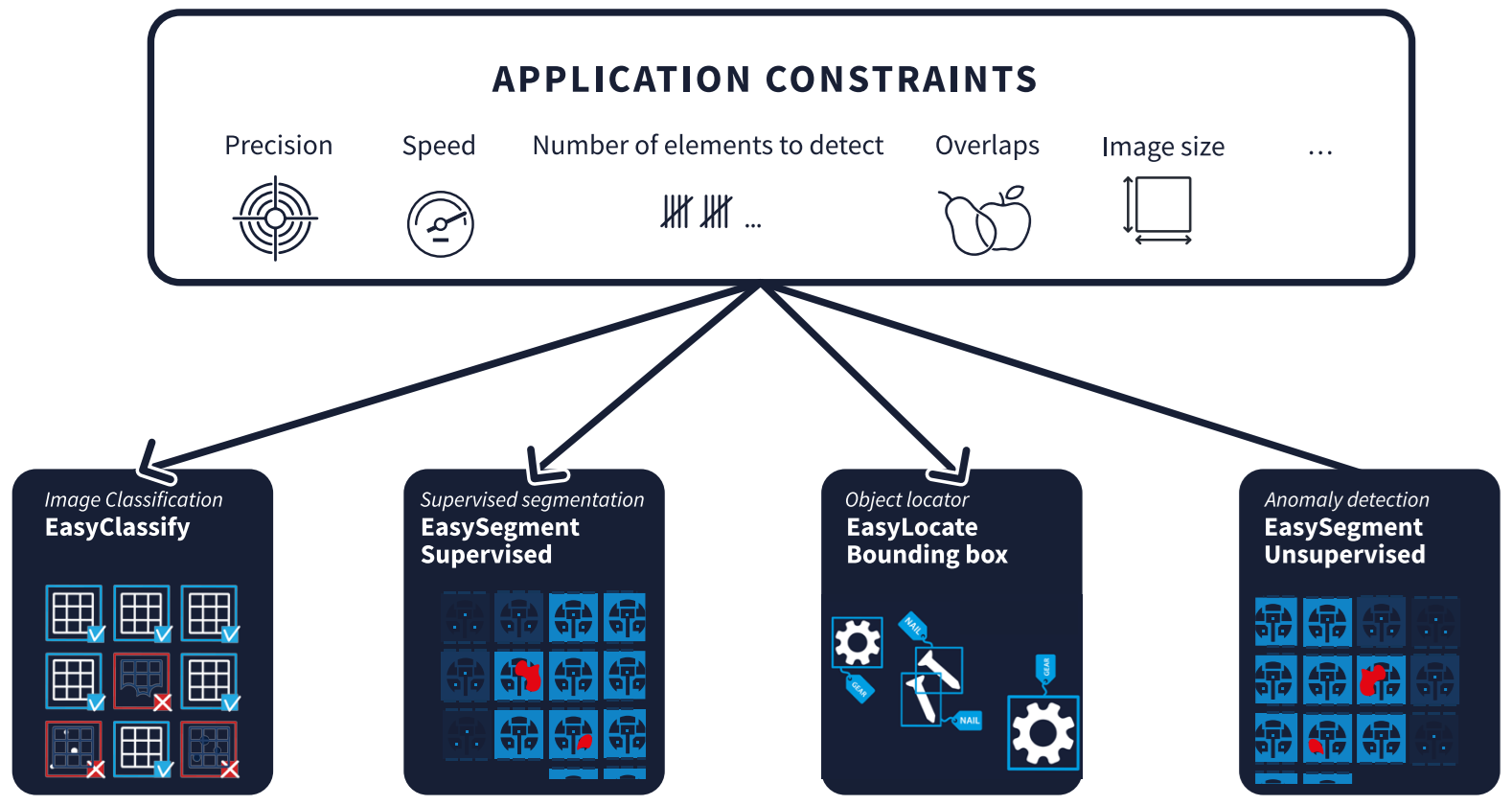 Figure 1: Criteria influencing the choice of a Deep Learning tool
- EasyClassify: Sorting object images by category
If you need to sort objects according to specific criteria (e.g. good/bad, by color, shape, etc.), EasyClassify allows you to define these criteria and train a model to allocate each image to the right category. - EasySegment: Finding defects inside an image
Sorting good from bad may not be enough. If you need to know what the defect is and where it is located, EasySegment allows you to teach your model how defects look like and where they may be found in the image. - EasyLocate: Finding and counting objects in an image
Some applications require to identify, locat e, and count different objects within the same image – for example different electronics components on a PCB or randomly positioned objects in a box. With EasyLocate, you can train a model to identify and highlight specific objects inside an image, even if they overlap.
3. Annotate the data
 Once you have selected the right tool, review your training images and annotate them to train your model:
- In EasyClassify, to create your categories and allocate each image to one category (e.g.: good/bad or red/yellow/blue,…). Euresys recommends at least 50 images per class for a robust training.
- In EasySegment, to mark defects inside each image and give them a name (e.g.: scratch, dent, crack,…). This supervised training is only possible if you have images of defects in your dataset. If it is not the case, EasySegment offers an unsupervised training mode using only images of good parts. The model will then identify and locate deviations in future images.
- In EasyLocate, to highlight each object that needs to be identified with a bounding box and tag it with the right name (e.g.: FPGA, microcontroller, connector,…).
4. Configure the training
 Once you have prepared your training data and selected the right tool, configure the training of your model in Deep Learning Studio. Configuration parameters include:
- The number of iterations, i.e. how many times the model goes through all the training images. This has an influence on the duration and quality of the training. The more iterations, the longer the training and the better the result.
- The batch size, which is the number of images that are processed together. This parameter has an influence on the processing speed, but also on the required memory and processing power.
- The data augmentation: data augmentation consists in deriving more training images out of the training dataset – for example by rotating or shifting images, changing lighting settings, adding noise, etc. The more variations your dataset includes, the more reliable your model will be in real life.
- Whether the training is deterministic or not. Deterministic training delivers more reproducible results but is slower than a non-deterministic one.
5. Train your model
 Once all your parameters are set, hit the “train” button in Deep Learning Studio and your training process will be added to the queue. Trainings are carried out one after the other according to the queue. The duration of the training depends on the size of the dataset, the training parameters and the performance of your hardware.
Unlike other tools, Euresys’ Deep Learning Studio performs the training 100% locally. This means your data is not uploaded to the cloud nor shared with Euresys or any other third party. This is highly beneficial for the confidentiality of your application.
6. Check the quality of the results
 You can validate your model in Deep Learning Studio with another split of your dataset.
If the results are not satisfactory, start the workflow again from step 1 (e.g. increase the size of your dataset) or step 2 (e.g. improve the quality of your annotations).
7. Export the trained model
 All previous steps of the workflow can be performed free of charge in Deep Learning Studio, which is very attractive for developers who want to experiment with machine learning before committing your edge device and test it in real-life operation. Euresys only charges a license for each inference of your model, i.e. each deployment of the model in the field so you only pay for what really delivers value in your operations.
Combining own models with pre-trained models and conventional libraries
While AI computer vision brings a lot of benefits, it doesn’t always have to be AI or it may be desirable to combine existing libraries for proven, mundane tasks like edge detection and train a model for the more application-specific ones. Using Euresys Open eVision, users can seamlessly integrate rule-based libraries, pre-trained models, and self-trained models into one single workflow, speeding up development time.
Food sorting and grading with EasyClassify
Deep learning technologies are powerful new approaches for the food industry. Classifying natural products is usually a task well handled by AI processing. However, food industries require very high inspection rates; the products are moving fast on a conveyor belt, and vision inspection cannot slow down the production process. Even with GPU, operating a classification of very high-resolution images can be too slow. Thus, with Open eVision, a 2 stages process is preferred: perform an efficient detection of the objects (using conventional operator) and then submit batches of small images to the deep learning classifier.
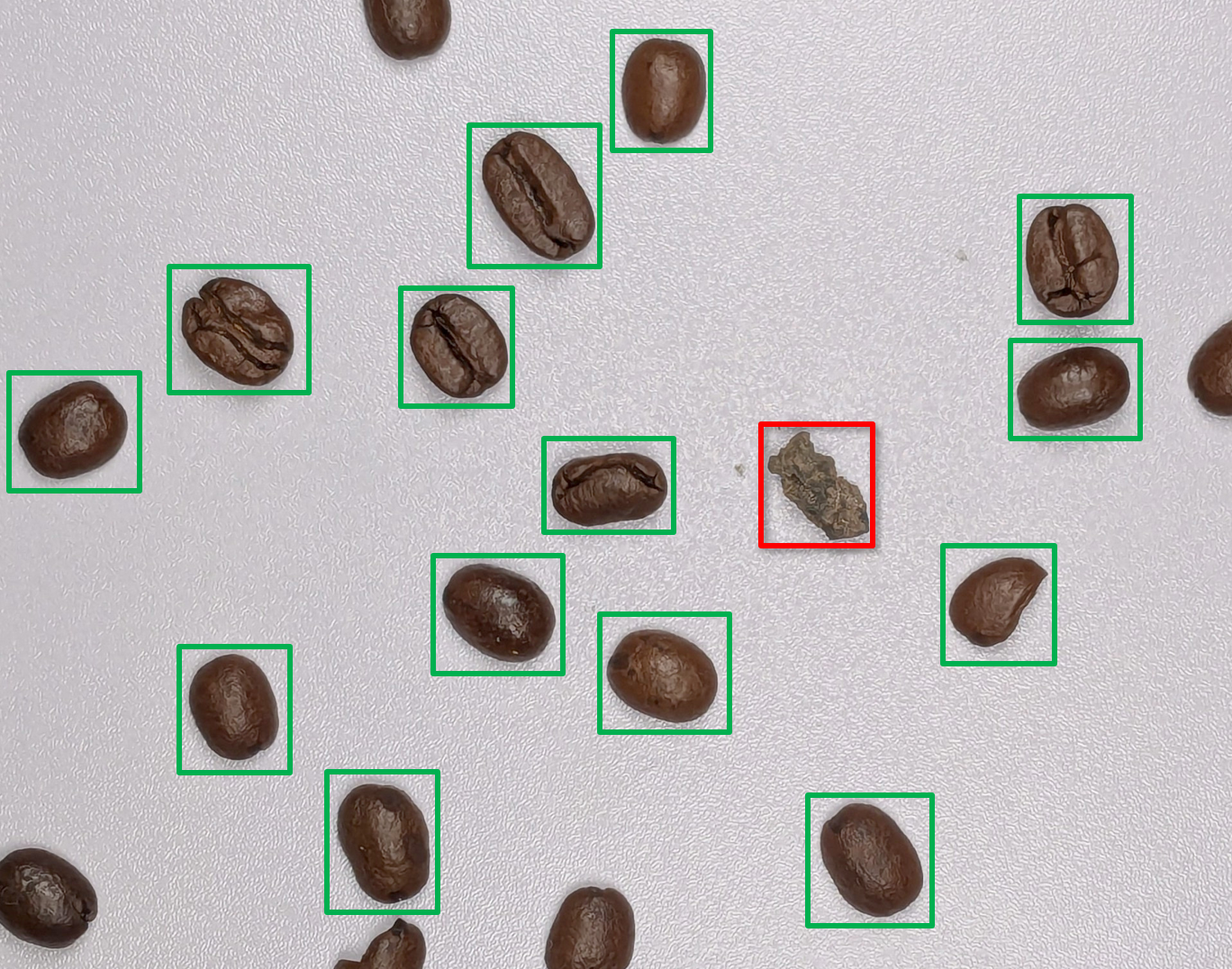
Figure 2: For example, a line scan camera running at 18000 lines per second can be processed by deep learning classification and the average decision latency is only 9ms (on a NVidia RTX A2000 GPU).
Pre-trained OCR model on Alecs smart camera
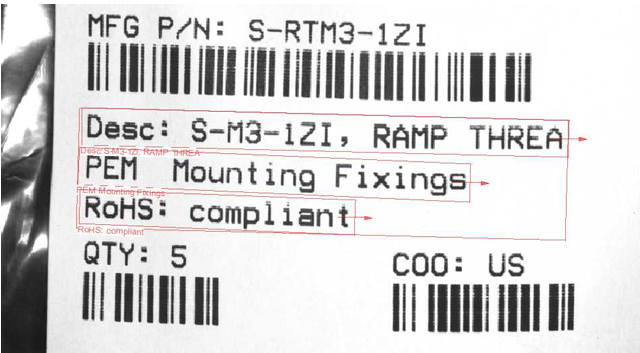
One example of a pre-trained model is EasyDeepOCR, a deep-learning-based text recognition tool that doesn’t require extra training. The tool can also be configured to read only specific information to speed up the process. Together with Allied Vision, Euresys has demonstrated an OCR application using Allied Vision’s Alecs smart camera based on a Jetson Orin system on chip (SoC). Open eVision is pre-installed on Alecs cameras and since EasyDeepOCR doesn’t require any training, the camera is immediately capable of reading complex labels in real time without any configuration. The application achieves a processing speed of 400 ms at an image resolution of 1,232×1,032 pixels on the Alecs GPU.
Object counting on NVIDIA Jetson Orin NX
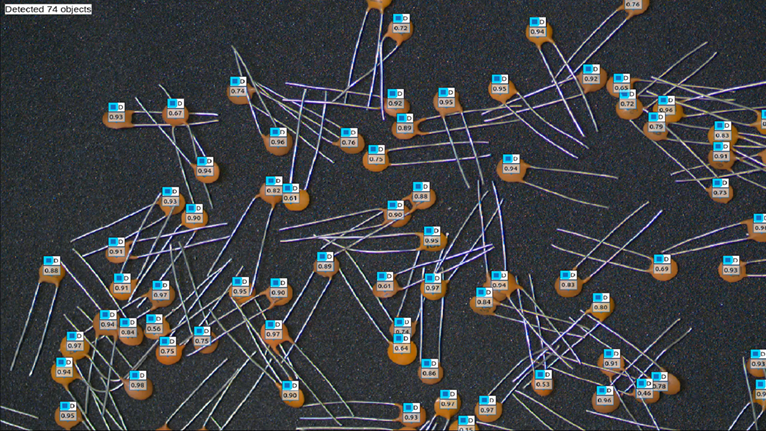
Figure 3 Example of EasyLocate
component recognition
An example of user-trained application is object counting. In this example, a model has been trained using the EasyLocate “interest point” method, which recognizes an object by searching for a specific region of interest in the image. It recognizes here the circular shape of capacitors and counts the number of instances in the image.
As seen in the training description above, Deep Learning Studio was used to:
- Annotate the dataset
- Configurate the training, for example with data augmentation and splits
- Train the model
- Validate the model (accuracy, inference speed)
This simple and easy to train model was then exported to an embedded computer running on a NVIDIA Jetson Orin NX SoC. It can detect up to 90 objects per image in real time at 20 frames per second (720×450 pixels) thanks to NVIDIA’s TensorRT SDK that is supported by Open eVision to speed up the inference on the GPU.
Powerful, flexible, easy to use and risk-free
Euresys’ Open eVision is a powerful tool for AI image processing at the edge. It offers a collection of model training tools for the most common machine vision tasks along with the established libraries that can be combined with machine learning into a single workflow. This flexibility makes it extremely easy to quickly and efficiently design a Machine Vision Software application. The licensing model by inference makes it very cost-efficient for developers who want to explore and test a model before committing budget. Model training and validation is free with Deep Learning Studio, so it is totally risk-free until the model is ready to be deployed in the field.